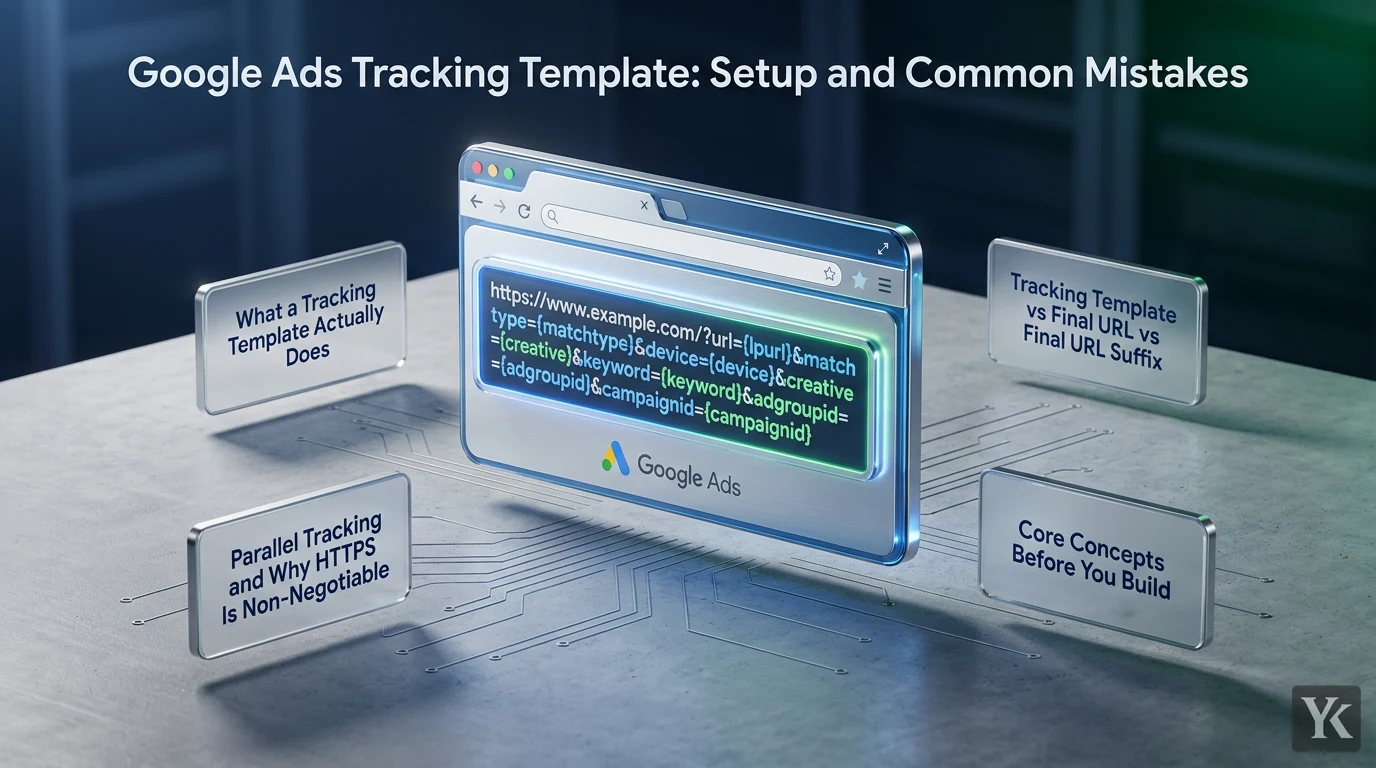
A Google Ads tracking template is the field where you put URL tracking information that gets added to your final URL when someone clicks your ad, so you can identify the source of each ad click, such as its campaign, keyword and device. For a Search campaign, start with {lpurl} (where Google puts your final URL) and append UTM parameters, most of them filled by ValueTrack values:
{lpurl}?utm_source=google&utm_medium=cpc&utm_campaign={campaignid}&utm_content={creative}&utm_term={keyword}&utm_matchtype={matchtype}&utm_device={device}&utm_network={network}
Get the template wrong and you end up with broken landing pages, missing UTMs in your BI reports, and a CRM full of leads with no attribution data. This guide covers the full setup, the right template structures for each campaign type, and the mistakes that quietly destroy attribution data in accounts that look fine on the surface.
What a Tracking Template Actually Does
The tracking template is not the landing page itself. It is the mechanism that builds the landing page URL, complete with parameters, before the user arrives.
The final URL is where the user ends up. The tracking template is the instruction set that decorates that URL with the data you need for reporting.
Tracking Template vs Final URL vs Final URL Suffix
These three fields do different jobs and confusing them causes real problems.
| Field | Controls | Example |
|---|---|---|
| Final URL | The destination page | https://example.com/landing |
| Tracking Template | Full URL structure including redirect | {lpurl}?utm_source=google&utm_medium=cpc |
| Final URL Suffix | Parameters only, appended after the final URL | utm_source=google&utm_medium=cpc |
The tracking template vs final URL suffix distinction comes down to this: the tracking template controls the entire URL structure, including any redirect layer you route clicks through. The final URL suffix only appends parameters. If you use a third-party redirect for click measurement or attribution, you need the tracking template. If you are only appending UTMs with no redirect, the final URL suffix is simpler.
Templates can be set at the account, campaign, ad group, ad and keyword levels, plus sitelinks and, in Performance Max, asset groups. The most specific level wins. As Google's own documentation puts it: "If you define multiple tracking templates at different levels, the most specific template is used. The keyword tracking template is the most specific followed by the ad, ad group, campaign, then account."
Parallel Tracking and Why HTTPS Is Non-Negotiable
Parallel tracking loads the landing page directly while Google processes the click measurement separately in the background. It is faster for users and mandatory for most campaign types. But it has a hard technical requirement: the tracking template URL and every redirect URL in the chain must use HTTPS and must use server-side redirects.
As the Google Ads help documentation states: "The tracking template URL and all redirect URLs need to be HTTPS to work. The redirects also need to be server-side." Client-side redirects, or anything still running on HTTP, will break click measurement silently. The ad serves, the click fires, and you never know attribution is broken until you audit.
Core Concepts Before You Build
ValueTrack Parameters
ValueTrack parameters are the building blocks of any useful tracking template. They are dynamic placeholders that Google replaces with actual click data at the moment of the click. Add them to your template once and they populate automatically for every click across every ad in scope.
The most commonly used ones:
{campaignid}- numeric campaign ID{adgroupid}- numeric ad group ID{creative}- ad ID{keyword}- the keyword that triggered the ad{matchtype}-e(exact),p(phrase),b(broad), ora(AI Max keywordless){device}-m(mobile),t(tablet), orc(computer){network}- such asg(Google search),s(search partners),d(Display),ytv(YouTube), orx(Performance Max){placement}- the site where the ad appeared (Display/Video){lpurl}- the final URL (required in account, campaign and ad group templates)
Performance Max has its own {assetgroupid} parameter, but it does not support {feeditemid}, {keyword}, {matchtype}, {creative} or {placement}, and {network} returns x for every PMax click. Deprecated parameters like {carrier} are unsupported too. When Google can't fill a parameter it inserts an empty value, so check each one against Google's PMax support table.
{lpurl}: The One You Cannot Skip
Every account, campaign and ad group tracking template must include {lpurl} or one of its variants. This placeholder tells Google where the final URL goes. In a parameter-only template it goes at the start; with a third-party redirect it sits inside the tracker's URL, such as https://tracker.example.com/click?url={lpurl}. Without it, the tracking template has no destination and your landing page breaks.
Besides {lpurl}, Google accepts variants such as {unescapedlpurl} and {escapedlpurl}.
The difference is encoding. {lpurl} is left unescaped when it opens the template and escaped anywhere else, which is what a redirect tracker expects in its url= parameter. {unescapedlpurl} is never escaped, and {lpurl+2} or {escapedlpurl+2} handle redirect chains that decode the URL more than once.
Auto-Tagging: Necessary but Not Sufficient
Auto-tagging appends gclid to every click URL automatically. GA4 reads gclid and populates campaign data in the Traffic Acquisition report without any manual UTM configuration. For pure Google Analytics reporting, it works well.
The problem shows up the moment you step outside GA4. CRM systems, BI tools, and data warehouses generally cannot parse gclid on their own. A lead lands in your CRM with no source, no campaign, no keyword. You have a conversion with no attribution. The fix is a routine: keep auto-tagging on, configure a tracking template, use dynamic ValueTrack parameters, standardize campaign names, and never rely on gclid alone if you report outside GA4.
Auto-tagging and tracking templates are not mutually exclusive. Run both. Auto-tagging handles GA4. The tracking template handles everything else.
Where to Apply Your Template
The hierarchy question matters more than most people think. Setting a template at the wrong level creates maintenance headaches and conflicting configurations that are hard to diagnose.
The Priority Order
Keyword-level templates override ad-level. Ad-level overrides ad group. Ad group overrides campaign. Campaign overrides account. The account-level template is the fallback, not the rule, unless nothing more specific is set.
This means an account-level template you set carefully can be silently overridden by an old ad-level template someone added two years ago and forgot about. The "Tracking template source" column in Google Ads shows you which level is actually firing. Check it when attribution looks wrong.
Account-Level vs Campaign-Level: When to Use Each
Current best practice is to use the account level as your single source of truth. Google itself recommends setting ValueTrack tracking up at the account level, and it is a level you can edit without sending ads back for review. One template, applied everywhere, with dynamic ValueTrack parameters handling the variation.
Campaign-level overrides make sense in specific situations:
- You have different redirect domains for different product lines
- One campaign uses a third-party attribution tool that requires a different URL structure
- You are running a test on a new tracking setup before rolling it out account-wide
- You have a campaign type (like PMax) that needs parameters the account-level template does not capture
Ad-level templates are mediocre practice in most cases. They multiply the maintenance burden, create more surface area for conflicts, and rarely add value that a well-structured campaign-level template cannot provide. Avoid them unless you have a documented reason.
The Masthead Exception
Masthead campaigns cannot use campaign-level tracking templates. Google requires the template to be set at the ad level for mastheads. This is a platform constraint, not a recommendation, and it is easy to miss if you are standardizing across a large account. Build it into your template governance documentation.
Step-by-Step: Account-Level Template Setup
- Open Google Ads and click the Admin icon in the left navigation
- Select Account settings
- Open the Tracking section
- Click the Tracking template field
- Paste your template (see examples below)
- Click Test to validate the URL resolves correctly
- Save
The Test function matters. It combines your final URLs with the template and checks that the result reaches a working landing page. If the test returns an error, or if the final URL looks malformed, fix it before saving. Catching it here costs nothing. Catching it after a campaign has been running for a week costs you attribution data you cannot recover.
Template changes can take 24 to 48 hours to reach live ads. After that, check the landing page URLs your site or form handler records for new Google Ads visits and confirm your parameters are there. Don't use GA4's Traffic Acquisition report as the test: with auto-tagging on, GA4 takes source, medium and campaign from gclid rather than your UTMs, so it shows google / cpc whether the template works or not. Also confirm that your CRM is receiving utm_campaign and utm_source values on form submissions. These two downstream checks are the real validation, not just the Google Ads Test function.
Template Examples by Campaign Type
Standard Search Template
Start with {lpurl}, append a question mark, then add UTM parameters built from ValueTrack values.
{lpurl}?utm_source=google&utm_medium=cpc&utm_campaign={campaignid}&utm_content={creative}&utm_term={keyword}&utm_matchtype={matchtype}&utm_device={device}&utm_network={network}
Using {campaignid} instead of a static campaign name means the parameter stays accurate even if someone renames the campaign. It also means your CRM receives the numeric ID, which you can map to a campaign name in your BI layer. Some teams prefer static names like utm_campaign=brand_search_us for readability in the CRM. Both approaches work. Pick one and standardize it.
Performance Max and Shopping
PMax needs different parameters because the standard keyword and match type fields do not apply. You want asset group data instead. Standard Shopping campaigns have no asset groups, so swap {assetgroupid} there for Shopping parameters such as {product_id} and {merchant_id}, and change utm_medium to something like shopping.
{lpurl}?utm_source=google&utm_medium=pmax&utm_campaign={campaignid}&utm_content={assetgroupid}&utm_device={device}
Setting utm_medium=pmax (or a similar static value) makes it easy to separate PMax traffic from Search in your CRM and BI tools, which would otherwise receive cpc for both. It won't change GA4: with auto-tagging on, GA4 keeps its auto-tagged google / cpc values. ClickPatrol's guide to tracking templates explains why {keyword} comes back blank on PMax traffic.
Display and Video
For Display and Video, placement and creative are the dimensions that drive optimization decisions. Build the template around them, and use utm_medium=video on Video campaigns.
{lpurl}?utm_source=google&utm_medium=display&utm_campaign={campaignid}&utm_content={creative}&utm_placement={placement}&utm_device={device}
{placement} shows the specific site or app where the ad appeared. This is the field that tells you whether your Display spend is going to relevant placements or to junk inventory. Without it in your template, you are optimizing blind.
Advanced: Custom Parameters and CRM Integration
Custom Parameters
ValueTrack gives you click-level data. Custom parameters let you add business-specific dimensions that ValueTrack does not cover: funnel stage, line of business, region, product category, or any other identifier your reporting structure needs.
You define custom parameters at the campaign, ad group, ad, keyword or sitelink level (not the account level) using the {_paramname} syntax: up to 8 per level, names up to 16 alphanumeric characters, values up to 250 characters. Setting {_lob} at the campaign level to saas on one campaign and ecommerce on another lets you pass line-of-business data through the URL without creating separate tracking templates for each.
In the template, it looks like:
{lpurl}?utm_source=google&utm_medium=cpc&utm_campaign={campaignid}&lob={_lob}&device={device}
Offline Conversions and CRM
If you are importing offline conversions into Google Ads, or doing any revenue attribution outside GA4, you need gclid flowing into your CRM alongside UTMs. The tracking template handles the UTMs. Auto-tagging handles the gclid append. Your landing page or form handler needs to capture both and pass them to the CRM on submission.
The 2026 UTM tracking guide from Trakt walks through the account-level setup workflow in detail, including how to confirm the template is generating correct URLs before going live.
Once gclid and UTMs are in the CRM, you can match closed revenue back to the campaign, keyword, and ad that sourced the lead. That is the data that makes budget allocation decisions defensible. Without it, you are optimizing Google Ads on lead volume alone, which is a reliable way to scale the wrong things. Meta ads need the same feedback, which the Meta Conversions API sends from your CRM or server. Once the data is flowing, marketing automation tools under $100/month can take over the reporting and lead routing.
Can You Standardize Templates Across Clients?
Yes, and you should. Agencies running multiple accounts benefit markedly from a documented template framework: a standard account-level template structure, a naming taxonomy for campaigns, and a rule that ad-level templates require a change log entry before they get added.
The practical approach is to maintain one master template per campaign type (Search, PMax, Shopping, Display, Video) and deploy them consistently across accounts. The ValueTrack parameters handle the dynamic variation. The only thing that changes account-to-account is any static identifier you include, like a client code written into each account's template.
The governance piece is what most teams skip. Without it, someone adds a campaign-level override, forgets to document it, and six months later nobody knows why that campaign's attribution looks different from everything else.
Common Mistakes That Break Attribution
Missing {lpurl}
The most common template error. Someone pastes a redirect URL with UTMs but forgets to include {lpurl}, so the template has no final URL reference. The ad fires, the redirect runs, and the user lands somewhere unexpected or gets an error. Always include {lpurl}: at the start of a parameter-only template, or inside the tracker's URL parameter when you use a redirect.
HTTP in the Template or Redirect Chain
If any URL in the chain, including intermediate redirects, uses HTTP instead of HTTPS, parallel tracking breaks. The click fires but measurement fails. Audit every redirect domain in your template for HTTPS compliance before launch.
Conflicting Templates at Multiple Levels
An account-level template you set carefully gets overridden by an old campaign-level or ad-level template that predates your setup. The result is inconsistent attribution: some clicks carry your standardized UTMs, others carry whatever the old template was appending.
Add the "Tracking template source" column to your campaign view. It shows which level is actually controlling each campaign's template. Clean up any overrides that are not intentional.
Static UTMs Instead of ValueTrack
Hardcoding utm_campaign=brand_search in a template means every campaign using that template reports the same campaign name in your CRM and BI tools. The data looks clean until you realize it is wrong. Use {campaignid} and map IDs to names in your BI layer, or use a naming convention that makes the static value campaign-specific.
The Fasilytics guide on tracking parameters covers the difference between static and dynamic parameter approaches in more detail, including how the same issues appear in Meta Ads tracking.
Does Template Level Affect Ad Approval?
It depends on the level. Changing a tracking template at the account, campaign or ad group level does not trigger ad re-review. Changes to the final URL do. This is one reason the template field is the right place to manage tracking parameters: you can update, test, and deploy changes without resetting ad performance history or triggering a review cycle.
Changes at the ad, keyword or sitelink level are different: Google sends those back through review, and saving an edited ad creates a new ad that replaces the old one. Keep routine tracking changes at the account, campaign or ad group level.
Real-World Scenarios
B2B SaaS: Separating PMax from Search
A B2B SaaS account running both Search and PMax campaigns needs to differentiate traffic sources in their CRM. The account-level template handles Search with utm_medium=cpc. A campaign-level override on PMax campaigns sets utm_medium=pmax and adds {assetgroupid} to the content parameter. The CRM receives distinct medium values for each campaign type, making it possible to compare CPL and pipeline contribution between Search and PMax without manual filtering. The same idea applies off Google: tracking native traffic means passing placement and creative macros into sub-IDs so every source reports separately.
E-commerce: GA4 Plus CRM Attribution
An e-commerce brand captures gclid and UTMs on every form submission and checkout. Auto-tagging makes sure GA4 sees full campaign data. The tracking template makes sure the CRM receives utm_source, utm_campaign, and utm_medium on every lead. When a lead closes some weeks later, the revenue gets attributed back to the keyword and campaign that sourced it via offline conversion import. The account-level template is the foundation that makes this work consistently across every campaign.
Agency: Global Template Framework
An agency managing multiple client accounts uses a documented template framework: one master template per campaign type, a client code written into each account's template, and a policy that no ad-level templates get added without a change log entry. Template updates deploy at the account level, propagate automatically, and do not require touching individual ads. When a client switches CRM platforms, only the downstream mapping changes, not the templates themselves. n8n vs Make Complex Marketing Workflows covers how automation platforms can handle the downstream routing and mapping once the tracking data is flowing.
2026 Readiness Checklist
Before you call a tracking setup done, run through this:
- Auto-tagging is enabled in account settings
- Account-level tracking template includes
{lpurl}(at the start, unless it sits inside a redirect URL) - All URLs in the template and redirect chain use HTTPS
- Server-side redirects only (no client-side)
- Template tested using the Google Ads Test function
- Campaign-type-specific templates deployed for PMax, Shopping, Display, and Video
- Parameters present in the landing page URLs your site or form handler records
- CRM receiving
utm_source,utm_campaign, andgclidon form submissions - No conflicting templates at ad or ad group level (check "Tracking template source" column)
- Campaign naming taxonomy documented and applied consistently
- Custom parameters defined for any business-specific dimensions
- Ad-level templates documented with a reason and change log entry
Frequently Asked Questions
Does the tracking template replace the final URL?
No. The final URL is still required and still controls where the user lands. The tracking template wraps around the final URL using {lpurl} as a placeholder, adding tracking parameters to the URL that gets built at click time. The template itself is optional and only works on top of the final URL.
Final URL suffix vs. tracking template: which should you use?
Use the final URL suffix if you only need to append UTM parameters and have no redirect layer. It is simpler to configure, and under parallel tracking its parameters are always sent to the landing page. But if you use a third-party click measurement tool, a redirect for attribution, or need {lpurl} to handle dynamic landing pages, the tracking template is the right field to use.
Will updating my tracking template reset ad performance data?
Not at the account, campaign or ad group level: updating the template there does not touch the ads or send them back for review. Edits at the ad, keyword or sitelink level do go through review, and editing an ad saves it as a new ad that replaces the old one. Keep routine tracking updates at the account, campaign or ad group level.
Why are my UTMs showing as (not set) in GA4?
The most common causes are: the tracking template is not saving correctly, {lpurl} is missing from the template, there is a conflicting ad-level template overriding the account-level one, or a redirect in the chain is stripping parameters. Run the Test function to confirm the template resolves. Then remember that with auto-tagging on, GA4 takes source, medium and campaign from gclid, not your UTMs; it only falls back to UTMs when it can't use the gclid, and any UTM you left out then shows as (not set). Set utm_source, utm_medium and utm_campaign together.
{campaignid} or a static campaign name in utm_campaign: which works better?
Using {campaignid} is more reliable because it stays accurate even if the campaign is renamed. The tradeoff is that your CRM and BI tools show numeric IDs instead of readable names. Many teams use {campaignid} in the template and maintain a lookup table in their BI tool or CRM to map IDs to names. For smaller accounts where readability matters more than automation, a consistent static naming convention works too. Pick one approach and apply it everywhere.
Digital Marketing Technologist
Yosef Kassabry is a media buyer with 11+ years in paid acquisition for Arabic-speaking audiences across MENA and the Gulf. He runs paid media through direct buys and affiliate networks, and writes about ad platforms, tracking, native ads and affiliate marketing for people who run campaigns.