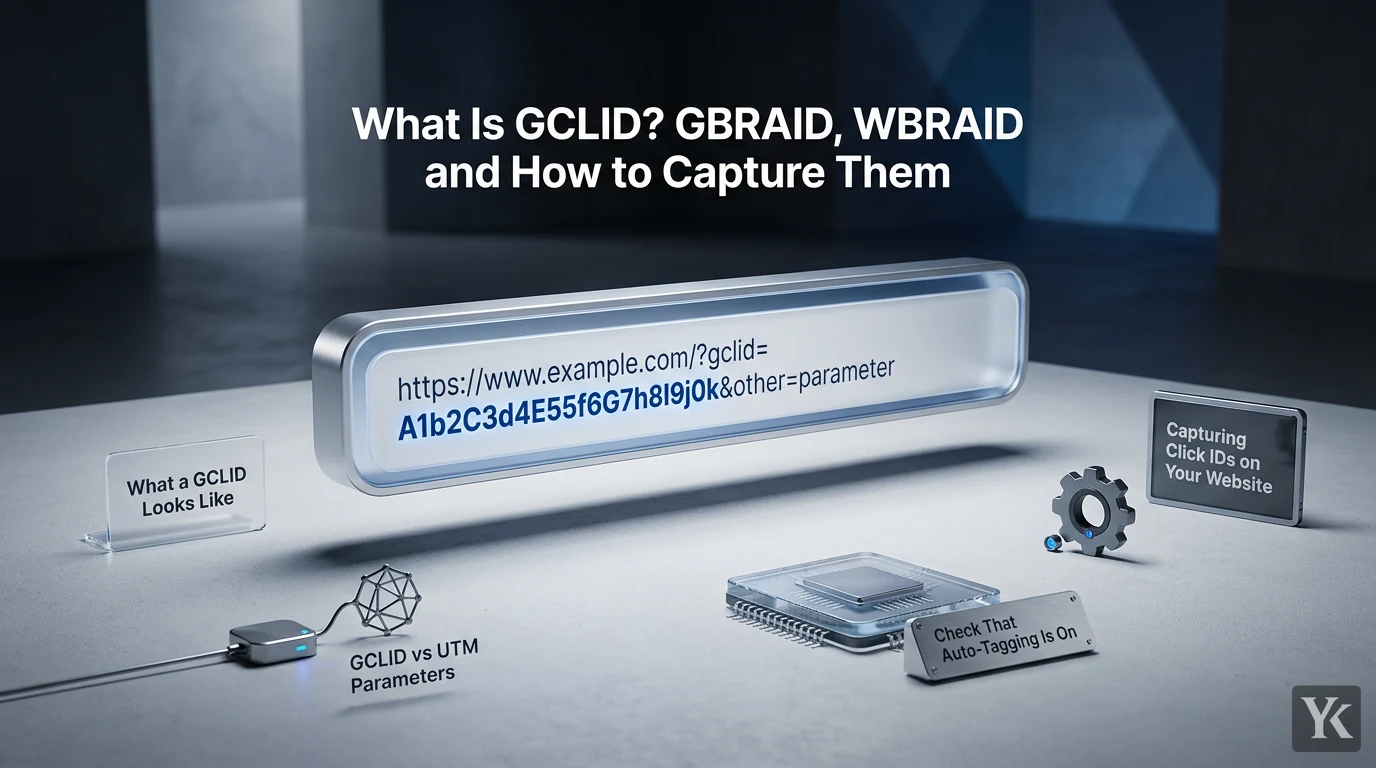
GCLID (Google Click ID) is the parameter Google Ads adds to your landing page URL when auto-tagging is on, as in ?gclid=.... Google uses it to look up the campaign and other details of that click, which is what lets you send a lead or sale from your CRM back to Google Ads weeks later. GBRAID and WBRAID are related click parameters Google added in 2021 for iOS measurement, and your landing page should capture all three.
Here is the thing: if Google Ads only hears about form fills, Smart Bidding learns to buy form fills. Sending qualified leads and closed deals back against these IDs teaches it which clicks become customers. Capturing the parameter is easy. Keeping it attached through redirects, consent, Safari, your CRM and WhatsApp handoffs is where it breaks.
What Is GCLID?
Google's glossary calls the GCLID a URL parameter passed with ad clicks that "identifies the campaign along with other attributes of the click" (Google Ads Help). Auto-tagging switches it on, and Google says it's required for Google Ads website conversion tracking and usable with offline conversion tracking.
Treat it as an opaque key. Google doesn't publish a format you can decode; its systems look the click up by the ID. Store it exactly as received: the GCLID is case-sensitive, and Google's Analytics help says a gclid can be up to 100 characters long, so size your database columns, logs and redirects for that.
What a GCLID Looks Like
https://example.com/landing-page?utm_source=google&gclid=EXAMPLE_ID
EXAMPLE_ID stands in for the real value, which can mix upper- and lowercase letters, digits, hyphens and underscores. Auto-tagging appends the parameter before any # fragment, with & instead of ? when the URL already has a query string. To check that it survives your site, use Google's own test: add a test value such as gclid=TeSter-123 to your final URL, load it in Chrome with DevTools open on the Network tab, and trace every redirect to see where the value drops (Google Analytics Help). Never upload a test value.
GCLID vs UTM Parameters
| GCLID | UTM parameters | |
|---|---|---|
| Added by | Google Ads auto-tagging | You, manually or through templates |
| Human-readable | No | Yes |
| Used for | Matching conversions to a Google Ads click | Campaign reporting in analytics and CRM |
| Offline conversion import | Match key (along with gbraid and wbraid) | Not used for matching |
Keep both: UTMs give your CRM readable campaign names, and the click ID is what Google matches imports against. How UTMs, ValueTrack parameters and the final URL suffix fit together is covered in the Google Ads tracking template guide.
What Are GBRAID and WBRAID?
Google introduced both in 2021 in response to Apple's App Tracking Transparency (ATT) policy. It also says that since ATT took effect, it no longer sends a GCLID for some iOS traffic from ads in a handful of Google apps (Google Ads Help).
The Google Ads API defines the two by what they measure, not by device (ClickConversion reference):
- gbraid: "The URL parameter for clicks associated with app conversions."
- wbraid: "The URL parameter for clicks associated with web conversions."
Google's offline conversion guide describes the typical journeys: a gbraid when someone clicks an ad on the web and goes to your iOS app, a wbraid when someone clicks an ad in an iOS app and lands on your website (Google Ads API docs). Google's GBRAID guide calls it privacy-preserving: it measures conversions "in a non-unique fashion (like Campaign ID)".
What that means for capture:
- A gbraid can arrive on an ordinary landing page. Google's GBRAID setup guide says to add a hidden gbraid field next to the gclid field, pass it on "including when the GCLID isn't available", and notes that GBRAIDs are useful even when a GCLID is present (Google Ads Help).
- A wbraid arrives on your website from ads shown inside iOS apps. Capture it the same way.
- App campaigns that send people to the App Store are a different flow. Google notes that App campaigns don't respect auto-tagging, so there's no landing page URL for you to read. That measurement runs through your app SDK or attribution partner.
So don't build logic around "iOS means no gclid" or "a gbraid means no gclid". Store whichever of the three arrive, each in its own field.
Check That Auto-Tagging Is On
Google says auto-tagging is on by default for new accounts, but check older or inherited accounts: click the Admin icon, open Account settings, expand the Auto-tagging section and make sure "Tag the URL that people click through from my ad" is ticked (About auto-tagging). The same page warns that some sites error out on unknown URL parameters, and that redirects must pass the GCLID through to the final landing page.
Capturing Click IDs on Your Website
Google's GCLID setup guide describes the job: a hidden form field, a script on every page that stores the ID in a cookie or local storage, and a field in your lead system to keep it. Google's tag also keeps click IDs in its own first-party cookies, such as _gcl_aw (Google's cookie list), but those serve Google's own measurement. Your CRM gets the ID only if you capture it yourself.
A Capture Script
Here is the pattern I write when a landing page has to pass click IDs into a form. It stores the three click IDs and the UTMs in a first-party cookie only after consent, and fills hidden inputs with matching names (gclid, utm_source and so on) at submit. No dependencies:
// click-ids.js: save Google click IDs and UTMs after consent, fill hidden form fields at submit.
(function () {
  const CLICK_IDS = ['gclid', 'gbraid', 'wbraid'];
  const KEYS = CLICK_IDS.concat(['utm_source', 'utm_medium', 'utm_campaign', 'utm_term', 'utm_content']);
  const NAME = 'click_ids';
  const MAX_AGE = 90 * 24 * 60 * 60; // Google's import window; Safari can cap it at 7 days or 24 hours
  const DOMAIN = ''; // e.g. '; Domain=example.com' to share the cookie with subdomains

  // Wire this to your consent platform: return true only after the visitor accepts ad cookies.
  function hasAdConsent() {
    return window.adConsentGranted === true;
  }

  function read() {
    const match = document.cookie.match(new RegExp('(?:^|; )' + NAME + '=([^;]*)'));
    try { return match ? JSON.parse(decodeURIComponent(match[1])) : {}; } catch (e) { return {}; }
  }

  function capture() {
    if (!hasAdConsent()) return false;
    const params = new URLSearchParams(window.location.search);
    const data = {};
    KEYS.forEach((key) => { const value = params.get(key); if (value) data[key] = value; });
    const gclsrc = params.get('gclsrc');
    if (gclsrc && gclsrc.indexOf('aw') === -1) delete data.gclid; // not a Google Ads click
    if (!CLICK_IDS.some((key) => data[key])) return false; // no new ad click: keep what is stored
    data.captured_at = new Date().toISOString();
    data.landing_page = window.location.origin + window.location.pathname;
    document.cookie = NAME + '=' + encodeURIComponent(JSON.stringify(data)) +
      '; Max-Age=' + MAX_AGE + '; Path=/; SameSite=Lax; Secure' + DOMAIN;
    return true;
  }

  function fill(form) {
    if (!hasAdConsent()) return;
    const data = read();
    Object.keys(data).forEach((key) => {
      const input = form.querySelector('input[type="hidden"][name="' + key + '"]');
      if (input && !input.value) input.value = data[key];
    });
  }

  function forget() { // call this when the visitor withdraws consent
    document.cookie = NAME + '=; Max-Age=0; Path=/; SameSite=Lax; Secure' + DOMAIN;
  }

  document.addEventListener('submit', (event) => fill(event.target), true);
  window.clickIds = { capture, fill, read, forget };
  capture();
})();
The choices behind it:
- Consent first. Nothing is stored until
hasAdConsent()returns true. Wire it to your consent platform, callclickIds.capture()from its "accepted" callback (the click ID is only in the landing page URL), and callclickIds.forget()when consent is withdrawn. - The latest ad click wins. A new click replaces the whole stored set, as Google's suggested script does with a stored GCLID, so IDs from two clicks never mix. A visit without a click ID changes nothing.
- The gclsrc check is the same one Google's suggested script makes.
- Fields fill at submit, in the capture phase on
document, before your form's own handler reads them.form.submit()skips the submit event, so callclickIds.fill(form)first. Securemeans the page must be on HTTPS. SetDOMAINif the form lives on another subdomain.
Safari Won't Keep the Cookie for 90 Days
The 90-day Max-Age mirrors Google's import window, not what Safari allows. WebKit documents these limits:
- Cookies created with
document.cookieare capped at 7 days (ITP 2.1). - The cap is 24 hours when a domain that ITP has classified as having cross-site tracking capabilities sent the visitor to your page and the landing URL has a query string or fragment (ITP 2.2). WebKit doesn't publish which domains are classified.
- localStorage and other script-writable storage are deleted after 7 days of Safari use without interaction on your site (WebKit blog).
So don't rely on the browser for a long sales cycle. As soon as the visitor consents, save the IDs on your server, keyed to a first-party session or lead ID, and use the cookie only to carry them to the form. A cookie your server sets in the HTTP response isn't under the document.cookie cap, unless it comes through a third-party CNAME or IP address, which WebKit also caps at 7 days (Tracking Prevention in WebKit).
Apple's Link Tracking Protection is a separate question. Apple says it removes tracking information from links shared in Messages and Mail and in Safari Private Browsing (Apple Newsroom), and Safari's advanced tracking and fingerprinting protection, on by default in Private Browsing and optional for all browsing, removes "known tracking parameters" from URLs (Safari User Guide). Apple doesn't publish that list, so don't assume a gclid survives or disappears on any iOS version. Test on current devices, and capture gbraid and wbraid as well.
Redirects, Iframes and Single-Page Apps
Where click IDs usually get lost:
- Redirects (HTTP to HTTPS, www to non-www, link shorteners, page builders) must forward the full query string.
- URL rewrites must keep the case. A rule that lowercases URLs breaks the ID.
- Iframes: a form embedded from another domain can't read the parent page's URL, so pass the values in from the parent.
- Single-page apps: read the parameters on the first load, before the router rewrites the URL.
- Other domains: a cookie doesn't cross domains, so forward the parameters to a form hosted elsewhere.
WhatsApp Handoffs
In MENA and Gulf lead generation it's common for the landing page to send the visitor to WhatsApp instead of a form. That's where the click ID gets dropped, because the conversation starts with no URL for your CRM to read. A pattern that keeps the link:
- Capture the click IDs on the landing page.
- When the visitor taps the WhatsApp button, create a short reference code, save it on your server with the stored IDs, and put it in the prefilled message. WhatsApp's click-to-chat format is
https://wa.me/<number>?text=<URL-encoded message>, with the number in full international format as digits only: no plus sign, leading zeros, brackets or dashes (WhatsApp Help Center). - When the chat arrives, your agent or inbox automation matches the code and attaches the stored IDs to the lead.
The visitor can edit or delete the prefilled text, so treat the code as best effort. And matching a WhatsApp number to click IDs, or uploading it hashed later, is personal data processing: tell people, get consent where the law requires it, and follow Google's customer data policies. Messaging those leads again on WhatsApp later has its own opt-in rules, limits and costs, which the WhatsApp broadcast message guide covers.
Getting the IDs Into Your CRM
Give each identifier its own field instead of one click_id column; Google's upload fields are separate, so a merged column turns the mapping into guesswork. A minimal field map:
| Field | What goes in it |
|---|---|
gclid, gbraid, wbraid |
Each click parameter, exactly as received |
utm_source to utm_content |
Readable campaign data |
captured_at |
When the IDs were captured |
landing_page |
The landing page URL |
consent_status |
Consent state, which Google's upload has a field for |
Then keep the IDs on the record you upload from. If your upload reads deals or opportunities, copy the IDs there from the lead. A common gap: the integration maps them to the contact and stops, so the closed deal has no ID to upload. Automated lead generation workflows are the place to make that mapping explicit. Treat each lead's click fields as one set: a later form submission without click IDs shouldn't wipe them, and one with new IDs should replace the whole set, not merge with it.
Sending Conversions Back to Google Ads
Google now calls offline conversion import a legacy feature (Google Ads Help) and recommends enhanced conversions for leads: the same import plus hashed email or phone, matched to data your tag collected at the form and to signed-in Google accounts (About offline conversion imports). Two 2026 changes matter:
- Since June 15, 2026, the Google Ads API no longer accepts new adopters of offline conversion imports, including enhanced conversions for leads, and the Data Manager API is Google's primary API for them. Developers who were already importing are allowlisted by developer token and can keep using the Google Ads API while they migrate (Google Ads Developer Blog).
- Enhanced conversions for web and for leads are now one on/off setting, and since April 2026 Google Ads accepts user-provided data from tags, Data Manager and API connections at the same time (Google Ads Help).
What decides whether an upload counts:
- Timing. Google won't import an offline conversion uploaded more than 90 days after the associated last click, or more than 63 days after it for enhanced conversions for leads (Google Ads Help). The conversion time also has to be after the click time.
- One click per conversion. Never combine IDs from different clicks. The Google Ads API rejects a conversion that carries both a gbraid and a wbraid (Google Ads API docs). A gclid with a gbraid is less clear: Google announced that the API would accept that pair from October 3, 2025 (Google Ads Developer Blog), but the same upload guide still lists it as an error, so check the response the first time you send both.
- Send what you have. Google says to include GCLIDs with your uploads whenever possible, alongside hashed user data (About enhanced conversions for leads), and its API guide warns that conversions without the consent field may not be attributable. It also says conversions with only hashed user data are still useful, so don't drop a lead because its click ID is missing.
Meta's counterpart is the Meta Conversions API, which matches server events to Meta accounts using its click ID (fbc) and hashed contact details.
Consent and Privacy
A click ID is advertising data. Google's GCLID setup guide tells you to follow local cookie-consent rules for the capture script, and its offline import page asks for consent where the law or Google's policies require it.
- Gate your own cookie and your server-side copy on the same consent as ad cookies.
- Google's consent mode governs Google's tags, not your script. When
ad_storageis denied, Google's tags don't store the click information in cookies, and the optionalurl_passthroughsetting carries it in the URL across links on the same domain instead. It needs consent mode and the Google tag on the page (consent mode guide). - Keep what the upload needs, and delete it once Google's import window has passed.
- GDPR and the privacy laws in your markets set the details, so involve whoever owns privacy before launch.
Testing Before You Trust the Data
- Confirm auto-tagging is on in Account settings.
- Load your final URL with test values (
gclid=TeSter-123, then gbraid and wbraid test values) and trace every redirect in DevTools. - Accept consent and check the
click_idscookie. In a fresh session, decline and check that nothing is stored. - Open a second page without parameters and confirm the stored IDs didn't change.
- Submit the form and check the hidden fields in the request payload, then in the CRM.
- Move a test lead to the stage you upload from and confirm the IDs are there. Don't upload test values.
- After your first real upload, check the upload history and the conversion action's Diagnostics tab in Google Ads.
Then track one number every week: the share of new leads with at least one click ID. A sudden drop usually means a redirect, form or consent change broke capture.
Frequently Asked Questions
Can I create or modify a GCLID?
No. Google generates it and looks the click up by it, so an invented or edited value won't match a click. Use test values such as TeSter-123 only to check that your pages keep the parameter.
Do I need GBRAID and WBRAID if I already capture GCLID?
Yes. Google's API guide says to store the GBRAID or WBRAID parameters as well as the GCLID, and its GBRAID guide says GBRAIDs are useful even when a GCLID is present. Keep all three in separate fields.
How long do I have to upload a conversion?
Up to 90 days after the associated last click for offline conversion imports, and 63 days for enhanced conversions for leads (Offline conversion imports FAQs). The conversion has to happen after the click.
Digital Marketing Technologist
Yosef Kassabry is a media buyer and full-stack developer with 11+ years in paid acquisition for Arabic-speaking audiences across MENA and the Gulf, and more than $10M in managed ad spend. He runs paid media through direct buys and affiliate networks, builds his own tools, and writes about ad platforms, tracking, native ads and affiliate marketing.